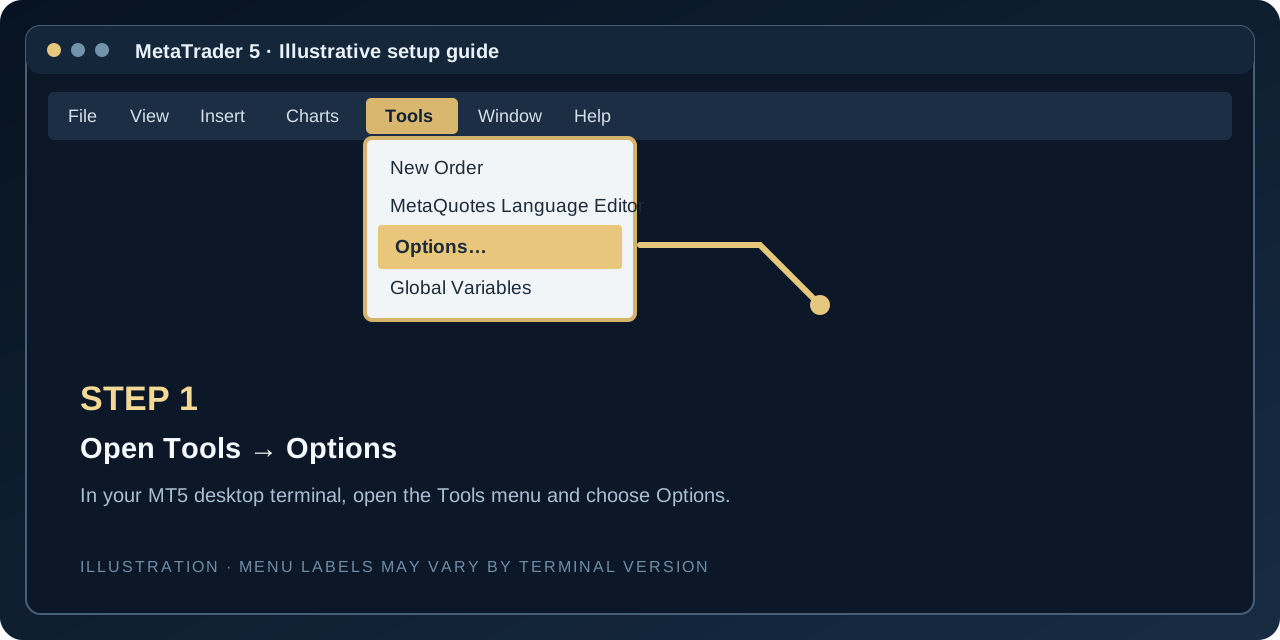
In MetaTrader 5, select Tools → Options → Expert Advisors.
Your BK customer workspace
Everything you need to run your EA.
Manage your licences, access compatible presets, review broker information and complete your MetaTrader 5 licence-server setup from one secure location.
Checking secure session…
My licences
Explore EA shopLoading licences…
EA library
EA downloads are shown for products associated with your active licences. The licensing backend remains the source of truth for activation and entitlement.
Loading EA catalogue…
Admin · EA file storage
New uploads are stored privately in the licensing database. Existing files hosted in the public repository can be copied to private storage below; the original public copy may remain accessible until it is removed separately.
Presets library
.SET FILESLoading presets…
Admin · Manage presets
Upload a .set file (maximum 1 MB), assign it to an EA, and publish it when ready. Licence-restricted presets are only downloadable by customers with an active licence for the assigned EA.
Broker directory
Broker information is provided for convenience. A referral click does not guarantee account approval, partner status, a downline relationship or commission attribution. Attribution is determined by the broker.
Admin · Manage brokers
Connect MetaTrader 5 to licence verification
REQUIRED SETUPYour EA contacts the BK Corp Club licensing server to validate its licence. MT5 must allow this server in its WebRequest list.
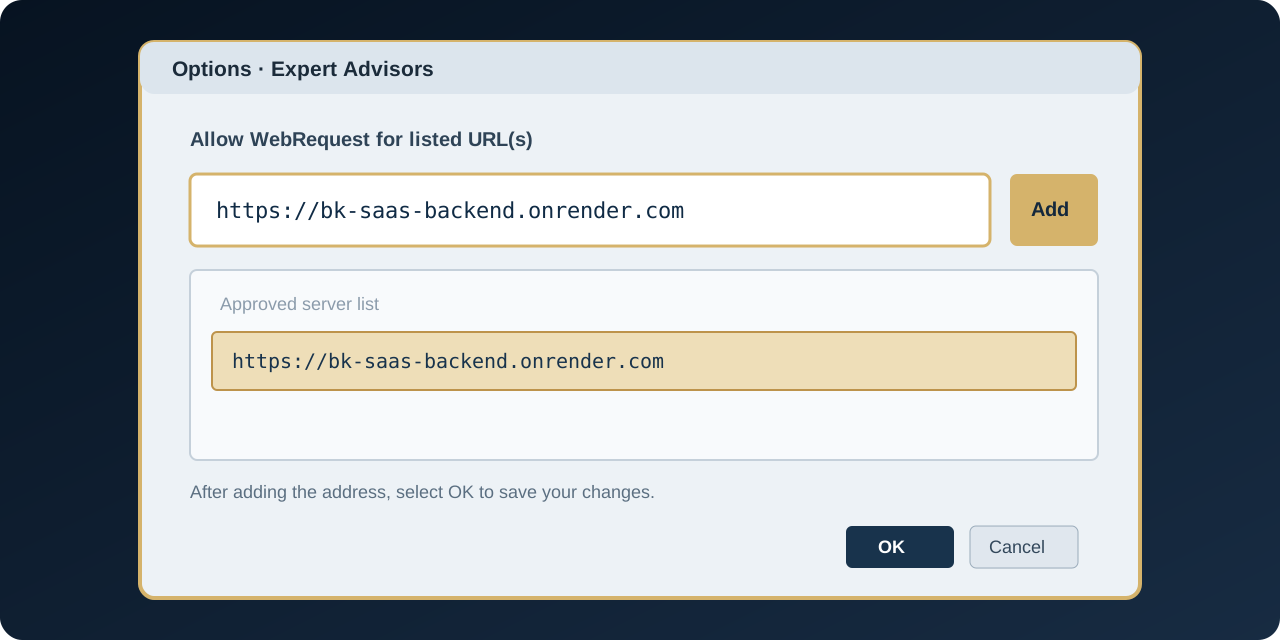
https://bk-saas-backend.onrender.comTick “Allow WebRequest for listed URL(s)” to enable the EA to contact approved servers.
Paste the server URL shown above into the list, select OK to save, then restart or reattach your EA if required.
Do not add guessed URLs. The confirmed server address for the current BK Corp Club EA licensing integration is https://bk-saas-backend.onrender.com. If validation still fails, capture the MT5 Experts and Journal messages for support.
Illustrated MT5 setup guide

My Account
Loading account details…
Support centre
PRIVATE TICKETCreate a support ticket for licence, download, billing, presets or MT5 setup issues. Do not include passwords or payment-card details.
My support tickets
Loading tickets…
Admin · Support queue
Admin · Email Templates
TRANSACTIONALEdit safe text fields only. HTML markup is fixed by the platform. Available placeholders: {name} and {productName}. Disabling custom text falls back to the built-in template; it does not disable transactional email delivery.